
5 Best Photo to Coloring Page AI Tools Review
Turning a photo into a coloring page sounds simple, but the results can vary quite a bit between tools. Some produce clean outlines that are easy to color, while others leave too many details, messy lines, or incomplete shapes.
To find out which tools actually work well, we tested five popular options: Colorify AI, iColoring, Crayola, Canva, and Adobe Firefly. We used their free versions for our comparisons, focusing on image quality, available features, ease of use, and download options.
Whether you want to turn a family photo into a coloring sheet, create printable activities for kids, or convert a detailed picture into line art, here’s what we found.
Quick Comparison: 5 Best Photo to Coloring Page Tools
| Tool | Main Features | Output Quality | Download Formats | Free Access |
|---|---|---|---|---|
| Colorify AI | Multiple styles and models; adjustable conversion levels | Good for different line-art styles | PNG, PDF | Limited free credits |
| iColoring | AI editing and batch processing | Good for simpler images; struggles with complex textures | PNG, PDF | 2 free generations; monthly credits |
| Crayola | Interactive editing, adjustable color removal, resizing, direct printing | Less effective with detailed images | Printable output | Free |
| Canva | One-click generation, prompt-based editing, multiple styles | Results can vary between generations | PNG | Free |
| Adobe Firefly | Multiple AI models and prompt-based adjustments | Depends on the selected model and prompt | PNG | Limited free generations |
Note: Free access and features are based on our testing at the time of writing. Credit allowances and subscription plans may change.
How We Tested These Photo to Coloring Page Tools
What Makes a Good Coloring Page?
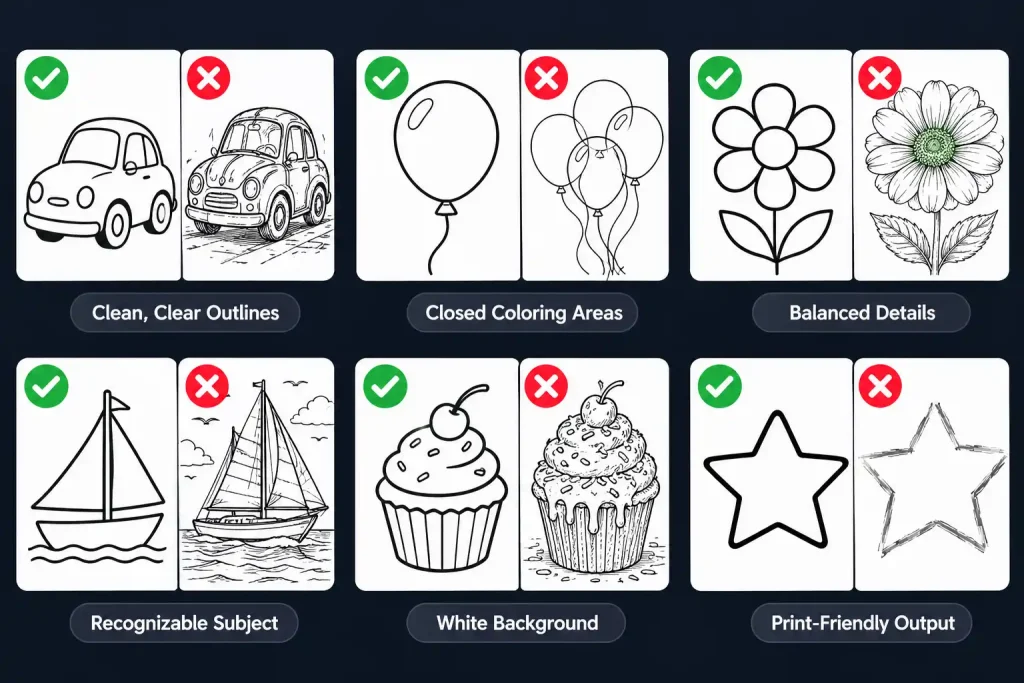
We evaluated each tool using the following criteria:
- Clean, clear outlines: The main subject should have recognizable contours without unnecessary marks or messy edges.
- Closed coloring areas: Shapes should have clear boundaries so users can color individual sections without colors spilling into neighboring areas.
- Balanced details: Important features should be preserved, but excessive textures and tiny lines should be simplified.
- Recognizable subjects: The generated line art should retain the original subject’s shape, expression, and key details.
- White background and black lines: A good coloring page should have a clean white background with dark, consistent outlines.
- Print-friendly output: Lines should be clear enough to print, with a layout that is easy to use.
For example, a photo with fur, leaves, furniture, and other textured elements can be challenging. A good tool should simplify these details instead of turning every texture into a confusing collection of lines.
What to Consider When Choosing a Tool
Before choosing a picture to coloring page tool, consider a few practical factors:
- Image complexity: If you mainly convert portraits or simple illustrations, most tools may be sufficient. Detailed photos require better edge detection and detail simplification.
- Customization: Some tools offer different styles or adjustable line-art intensity, while others generate a result with little control.
- Editing options: Being able to refine the result, remove unwanted details, or regenerate specific areas can save time.
- Download formats: PNG is useful for digital use, while PDF is convenient for printing.
- Free usage: Check how many generations are included and whether advanced models or higher-quality downloads require credits or a subscription.
5 Photo to Coloring Page Tools: Detailed Reviews
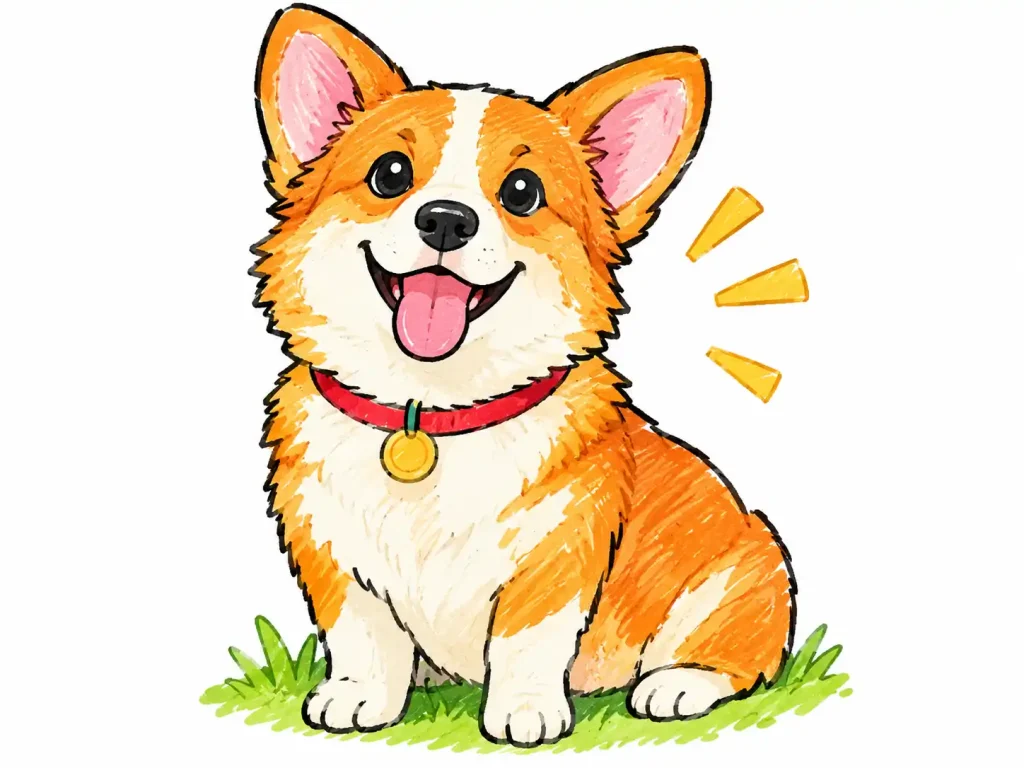
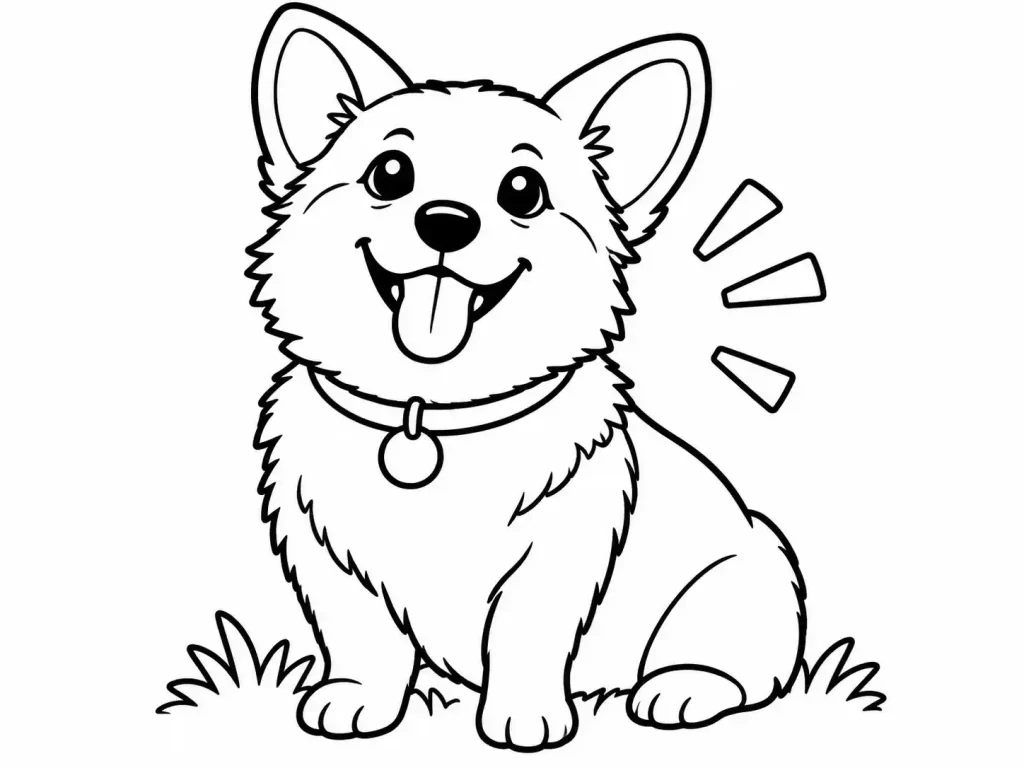
We used the same colorful Corgi illustration as the original input for all five tools to make the comparison fair. A simple photo with clear shapes and few details might produce similar results across different tools, making it difficult to identify their actual differences.
This image offers a more useful test. It includes layered fur textures, multiple color transitions, detailed facial features, and grass in the background. These elements help reveal how well each tool preserves important shapes, simplifies textures, and produces clean, recognizable outlines without introducing unnecessary lines.
1. Colorify AI
Best for: Users who want multiple coloring styles and conversion options
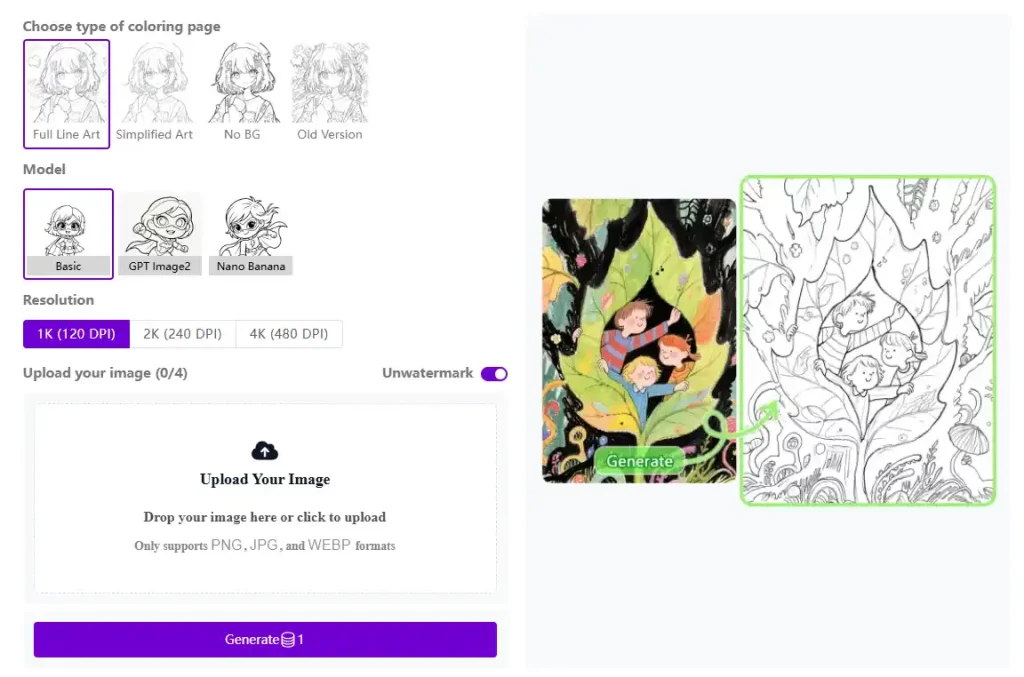
Colorify AI image to coloring page generator offers several types of coloring page generation, giving users more control over how an image is transformed. Instead of relying on a single conversion style, you can choose between different levels of detail, including Sketching, Tracing, and Coloring.
It also provides multiple AI models, making it possible to experiment with different generation approaches.
Pros
- Multiple styles and AI models to choose from.
- Adjustable conversion levels, from Sketching to Tracing and Coloring.
- Supports both PNG and PDF downloads.
Cons
- Free generations are limited.
- Higher-quality generation requires a subscription.
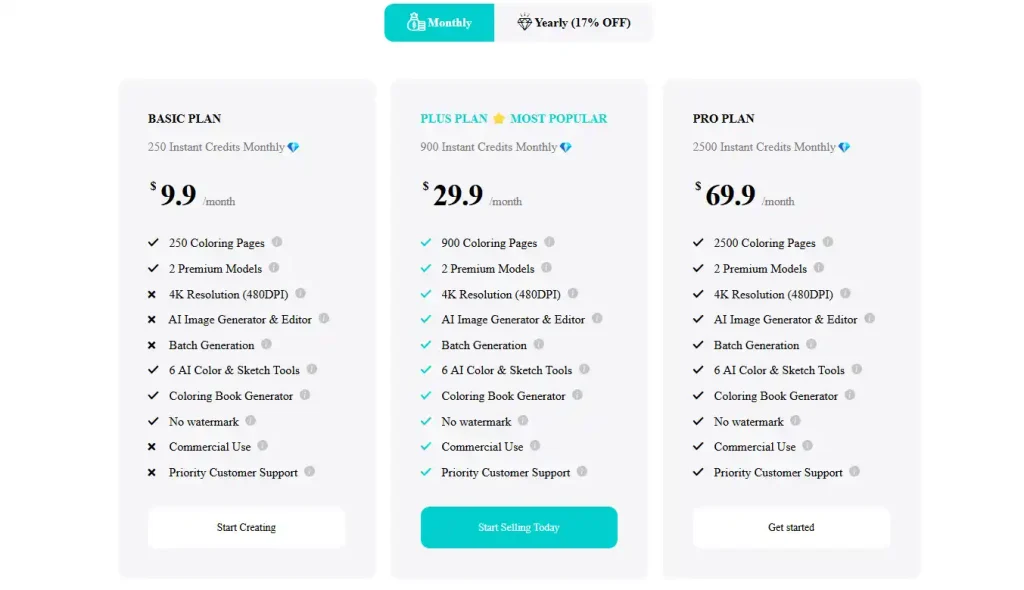
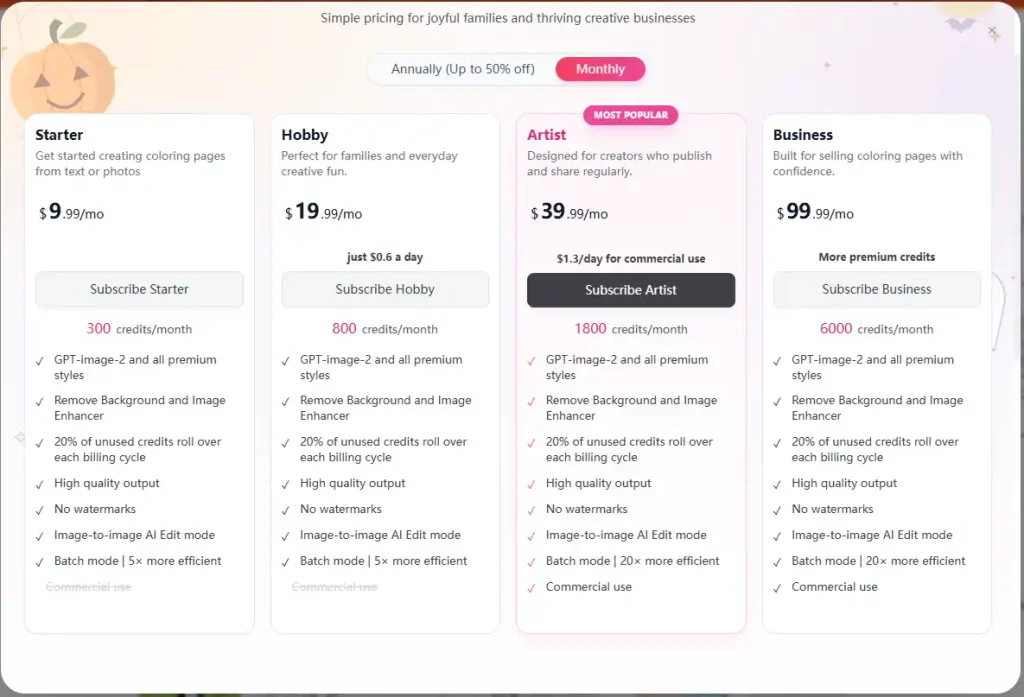
Pricing: The free plan provides 3 credits per day, up to 90 credits per month. Standard models cost 1 credit per generation, while advanced models cost 3 credits.
2. iColoring
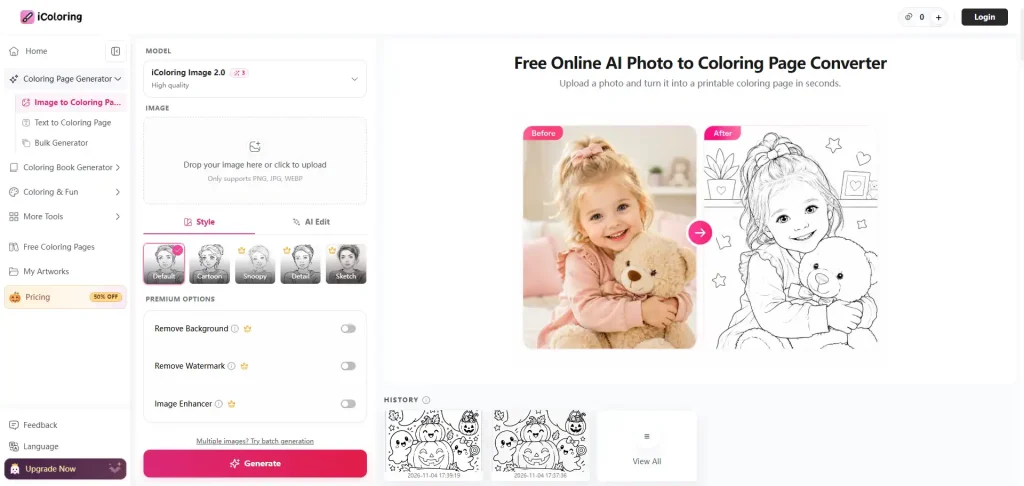
iColoring AI offers more than basic photo-to-coloring-page conversion. Its AI editing feature lets users make further adjustments, and batch processing is useful when converting multiple images.
The tool supports both PNG and PDF downloads, which makes it convenient for creating digital coloring sheets or printable pages.
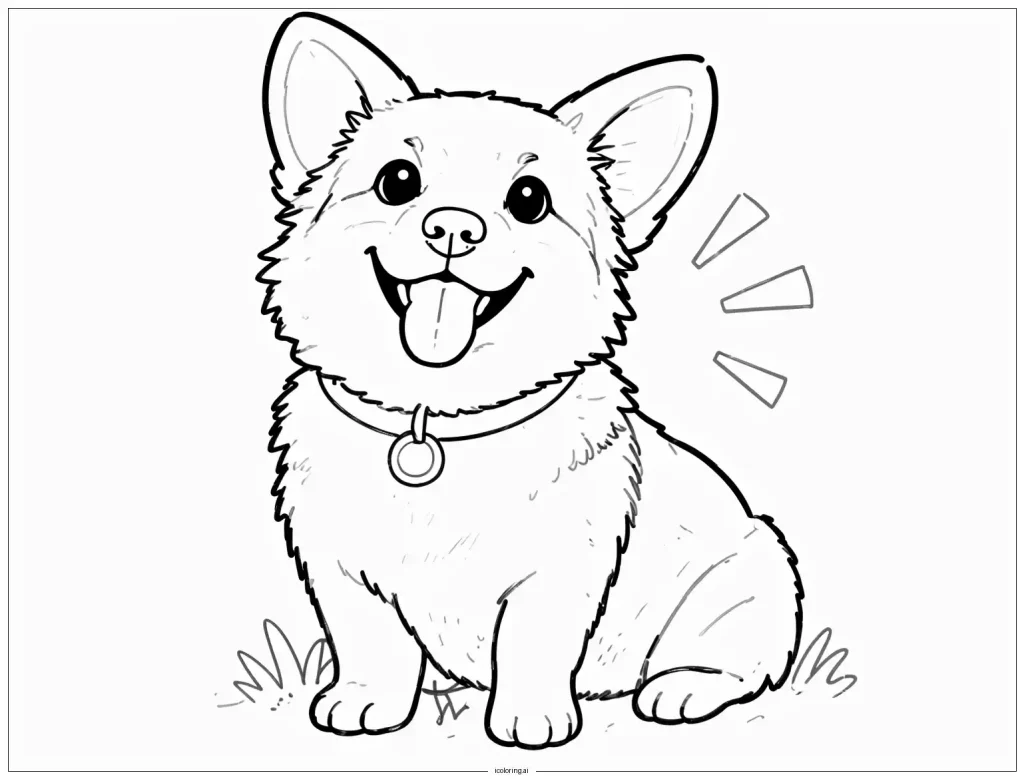
However, the free experience is more limited than the feature list might suggest. Many styles and editing options require an upgrade, and the results can be less reliable when the original image contains complex textures.
Pros
- Includes AI editing for additional adjustments.
- Supports batch processing.
- Offers PNG and PDF downloads.
Cons
- Many features require a paid plan.
- Free users can access only two styles.
- Conversion quality can suffer with images containing dense textures and details.
Pricing: The free version includes two generations. After that, the plan provides 30 credits per month, with each generation costing 3 credits.
3. Crayola Custom Coloring Page
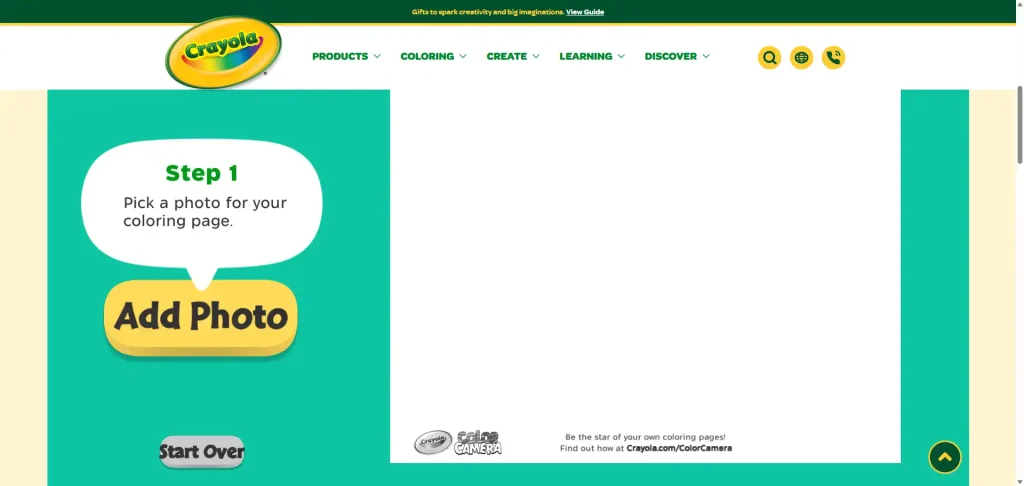
Crayola takes a more playful and interactive approach to creating coloring pages. You can upload a photo and turn it into an outline, then adjust how much color is removed from the image.
One useful option lets you remove all the black areas, giving you some control over the appearance of the final outline. You can also resize the result and print it directly, making the tool especially convenient for family activities.
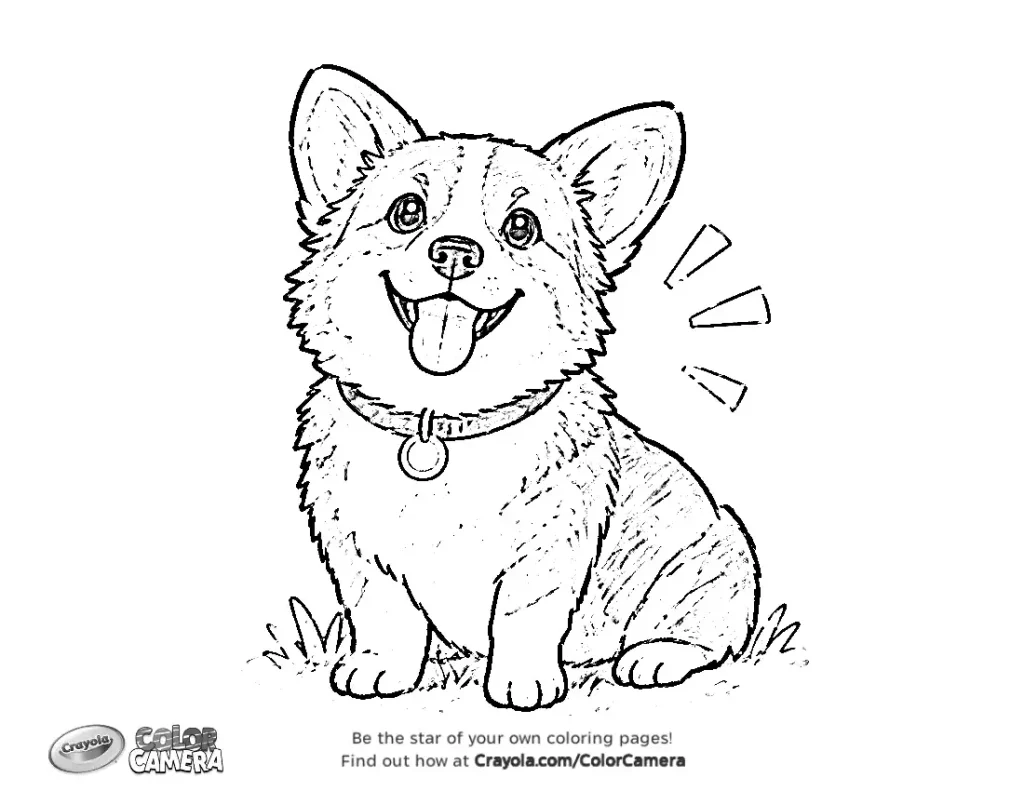
However, its simplicity comes with limitations. The generated outlines can struggle with detailed or heavily textured images, and the watermark is quite noticeable in the final result.
Pros
- Fun, child-friendly interface with interactive steps.
- Adjustable color removal.
- Allows users to resize and print the result directly.
- Free to use.
Cons
- The watermark is quite prominent.
- The process is less streamlined than a one-click AI converter.
- Results are often poor when the original photo contains complex textures.
Pricing: Free to use.
4. Canva
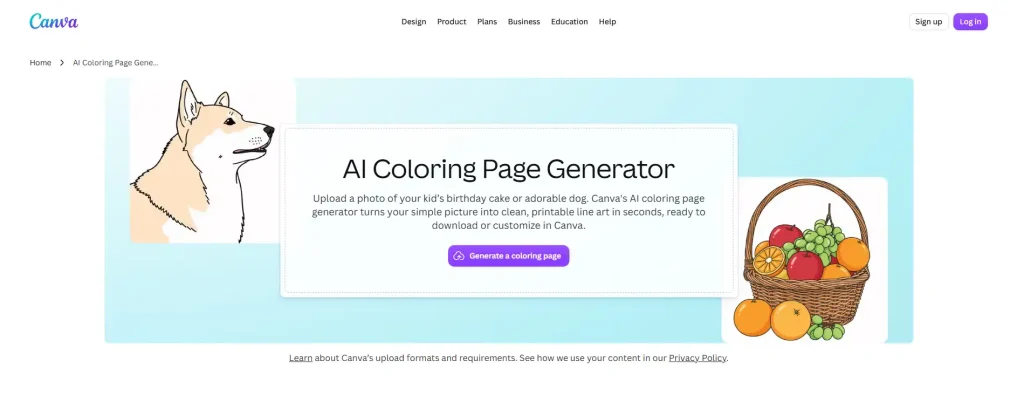
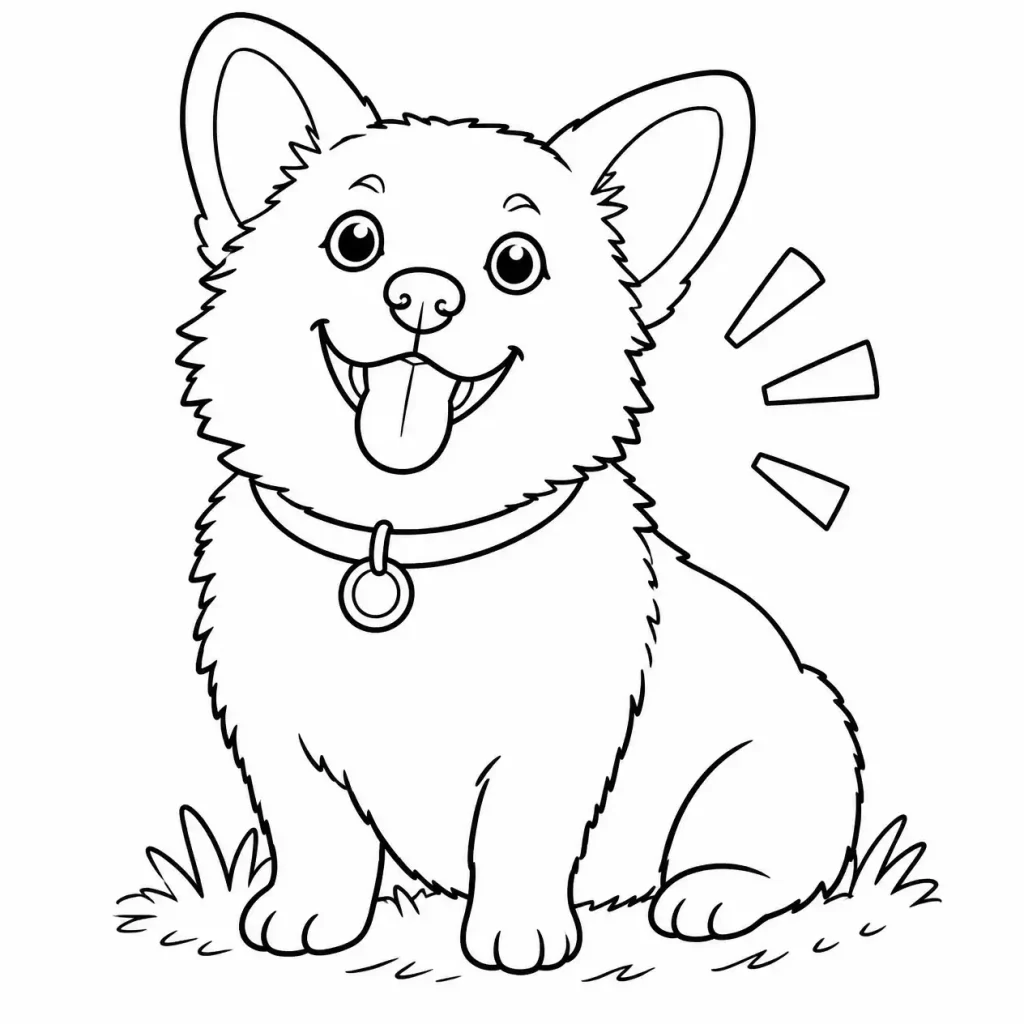
Canva offers a straightforward way to turn an image into a coloring page. Its one-click generation process makes it easy to get started, and you can describe the changes you want to make after the initial result is generated.
It also provides multiple styles, so you can experiment with different visual approaches without switching tools. Another advantage is that the generated results do not have a watermark.
However, the output is not always consistent. The generated image may have a different aspect ratio from the original, and repeated generations can produce noticeably different results. PNG is the only download format available in our test.
Pros
- Simple one-click generation.
- Allows prompt-based editing after generation.
- Offers multiple styles.
- No watermark on the generated image.
Cons
- The output aspect ratio may differ from the original.
- Results can vary between generations.
- Supports PNG downloads only.
Pricing: Free access is available.
5. Adobe Firefly
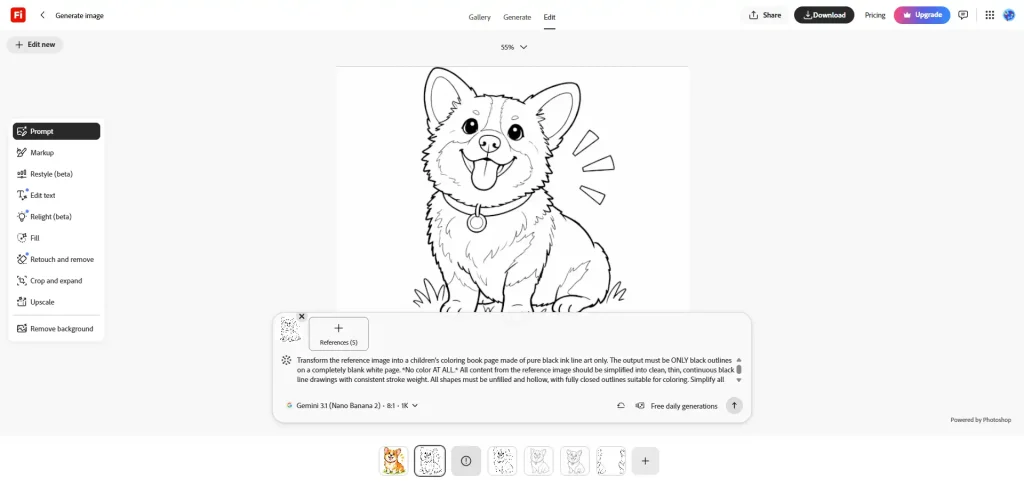
Adobe Firefly provides access to multiple AI models, giving users more flexibility when generating coloring page images. You can also use text instructions to adjust the output, which is useful when you want to change line thickness, simplify details, or refine the overall style.
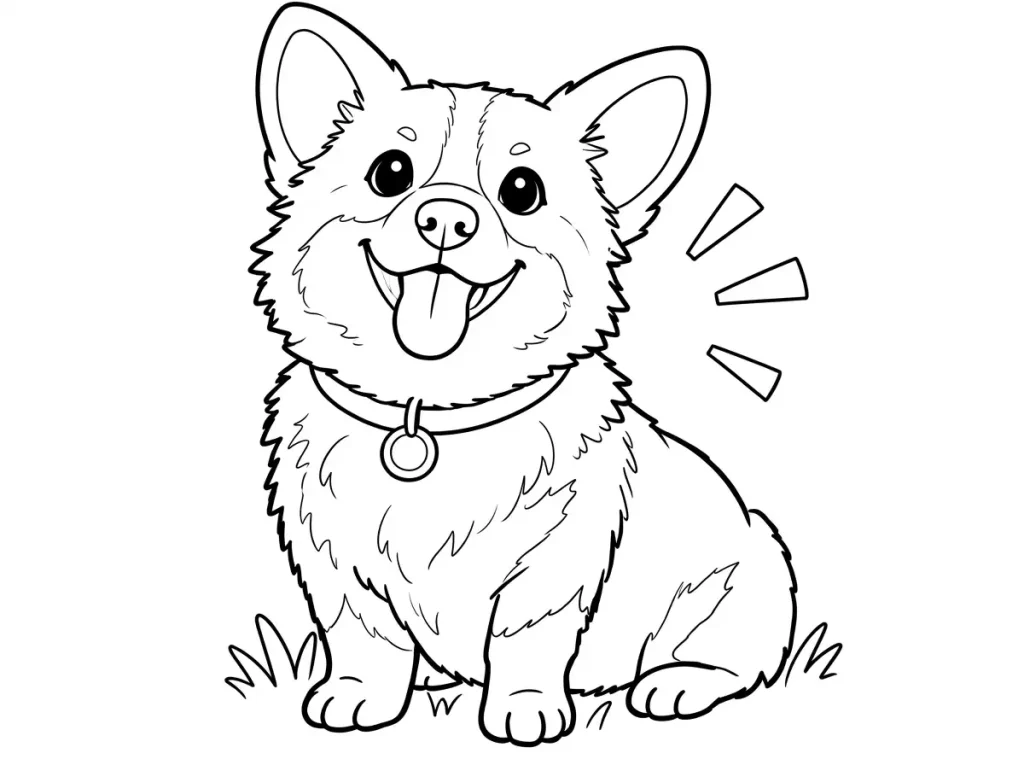
However, it is not a dedicated photo-to-coloring-page tool. Getting a good result may require trying different models and adjusting prompts several times. In our tests, the results were relatively inconsistent for this specific task.
Pros
- Offers multiple AI models.
- Supports prompt-based adjustments.
- Allows users to experiment with different generation approaches.
Cons
- Coloring page generation quality is inconsistent.
- Requires some prompt experimentation.
- Different models may produce noticeably different results.
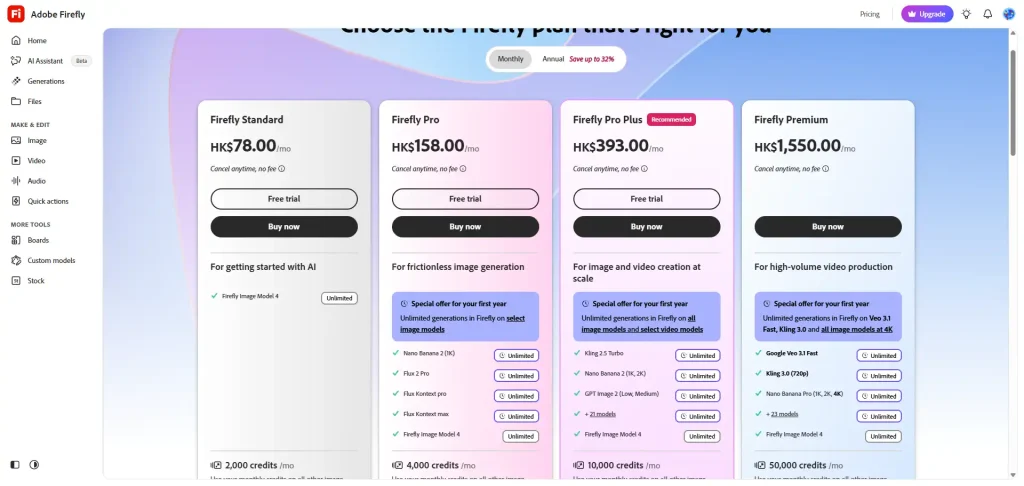
Pricing: In our test, we could generate one image before signing in and four additional images after signing in for free. Further usage may require credits or a paid plan.
Final Thoughts
Which tool should you choose?
- If you want the most control over styles and conversion levels, Colorify AI is the best overall choice.
- If you need to convert many images at once, iColoring’s batch processing saves time.
- If you’re making simple coloring pages for kids or family activities, Crayola is a fun, free option — just be aware of its watermark.
- If you want a quick, watermark-free result and already use Canva, Canva is convenient.
- If you want to experiment with different AI models and prompts, Adobe Firefly is worth trying.
For most users looking for the best balance of quality, customization, and download options, we recommend Colorify AI.
Turning a photo into a coloring page may seem like a simple one-click task, but getting a result that is both recognizable and enjoyable to color takes more than removing colors. Our tests show that the original image plays an important role: lighting, textures, background details, and subject complexity can all affect the final output.
If you plan to use an image to coloring page generator, don’t judge its quality based on just one sample. Try it with the actual photos or pictures you want to convert, and check whether the results need additional cleanup before printing. A good photo to coloring page result should be more than a black-and-white image—it should be something people will actually enjoy coloring.