
How to Make an Image Black and White: A Simple Online Guide
Turning a color photo into black and white sounds almost too simple to need a guide. After all, most phones have a monochrome filter, and nearly every photo editor has a “Desaturate” button hiding somewhere.
But there is a catch.
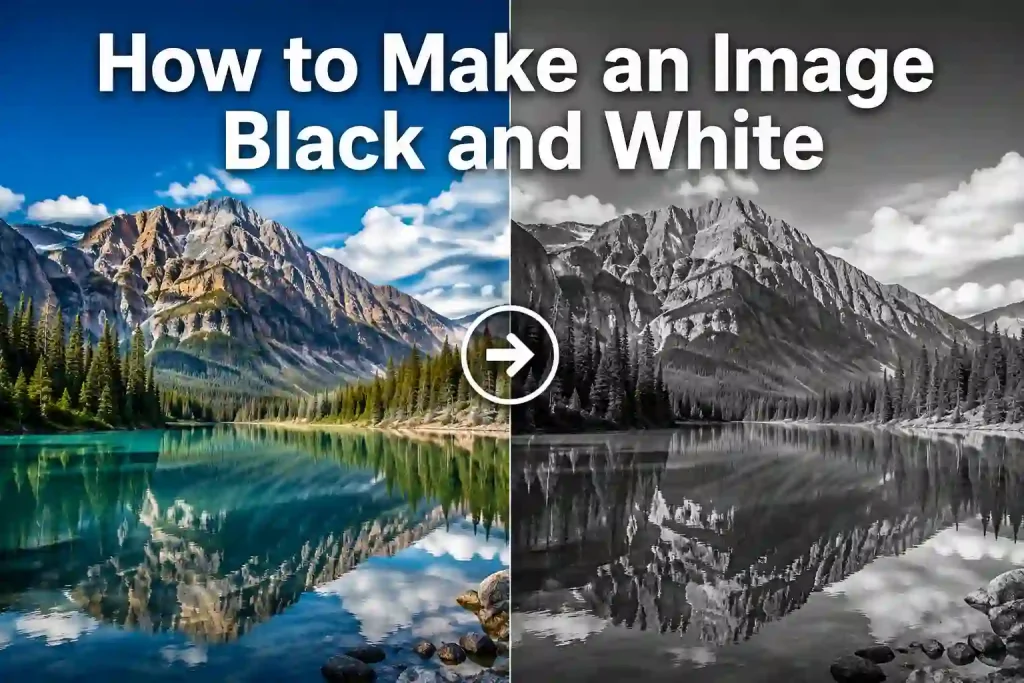
A quick filter can also turn a good photo into a flat gray image, soften details you actually wanted to keep, or send a private photo somewhere you would rather not send it. In other words, making an image black and white is easy. Making it look good while keeping it sharp and private takes a little more thought.
This guide explains what makes a good black and white image, the difference between black and white and grayscale, how common editing methods compare, and how to use an online Black and White Filter to get the job done without turning your photo into a gray pancake.
What Makes a Good Black and White Image?
Preserve Contrast and Tonal Depth
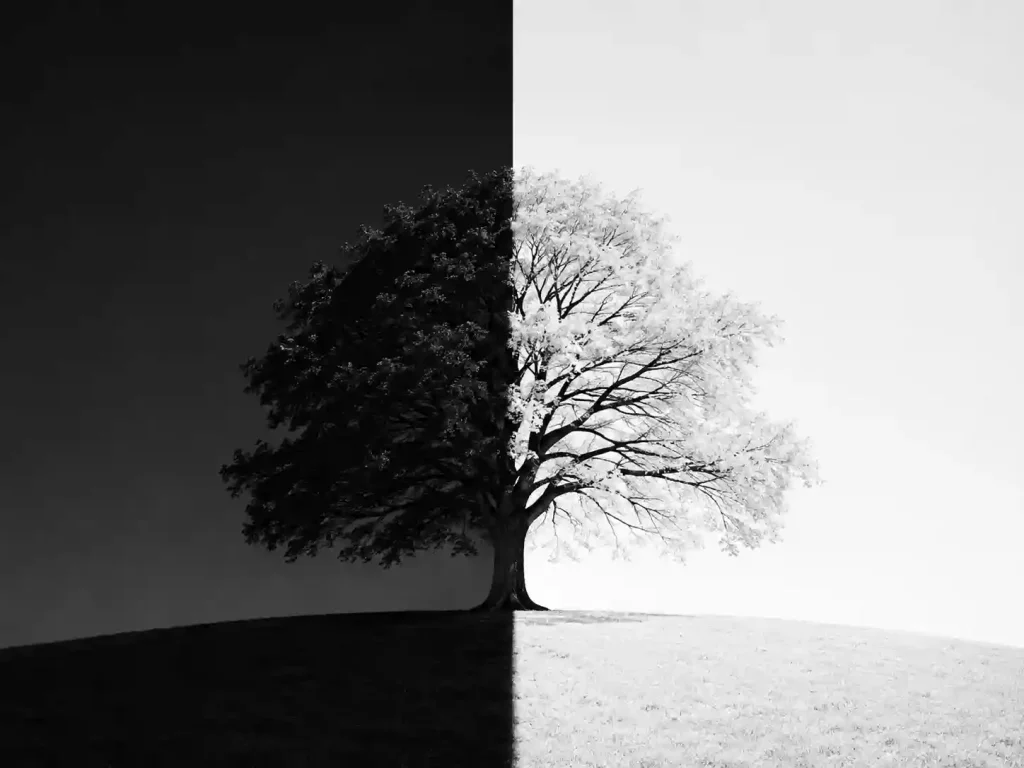
Color provides one way to separate objects in a photo. Once the color disappears, light and shadow have to do more of the work.
A good black and white conversion should preserve a clear difference between:
- Highlights and shadows
- Foreground and background
- Important details and less important areas
- Different textures and surfaces
Simply removing saturation can sometimes leave everything sitting in the same middle-gray range. The result is technically black and white, but visually rather sleepy.
A better conversion considers the different brightness levels in the original image and creates enough contrast to give the photo depth.
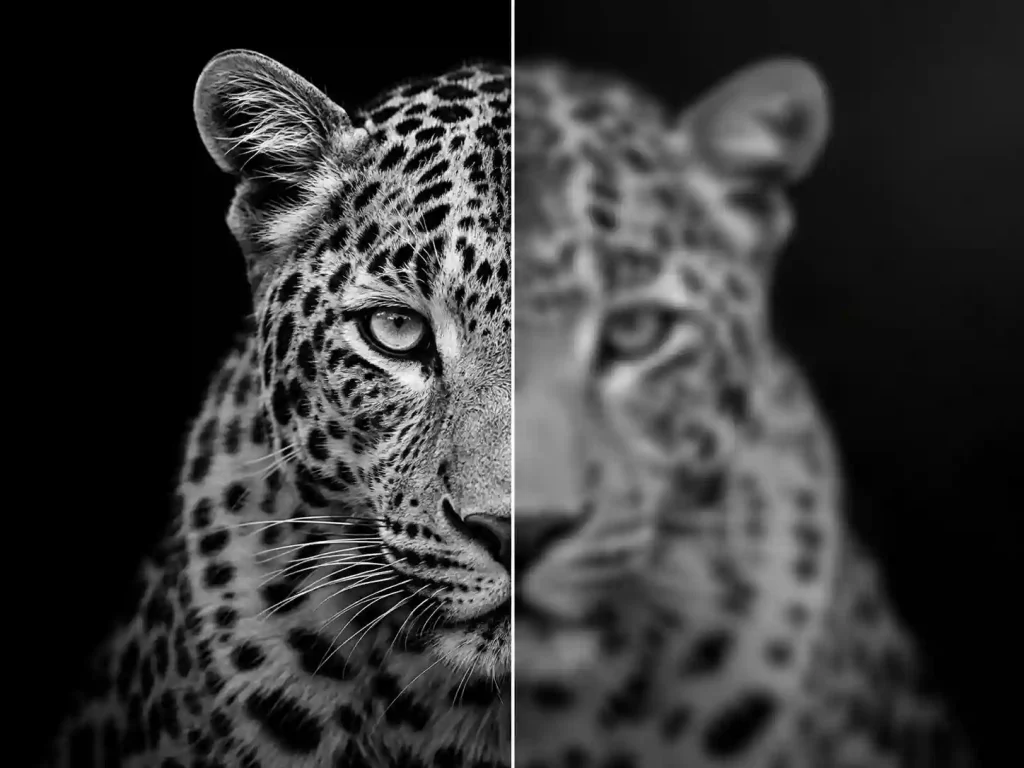
Keep Details Sharp
Protect Your Image Privacy
There is another consideration that has nothing to do with photography: where your image goes.
If you are converting a family photo, personal portrait, document, or other private image, check how the tool processes uploaded files. Cloud-based editors may require your image to be uploaded to their servers, while some browser-based tools can process images locally on your device.
Colorify AI’s Black and White Filter is designed around local browser processing, meaning images are processed on your device rather than uploaded to or stored on its servers. It also works without requiring a separate software installation or account.
That makes privacy one less thing to worry about while you are worrying about whether your shadows look dramatic or simply angry.
Black and White vs. Grayscale: What's the Difference?
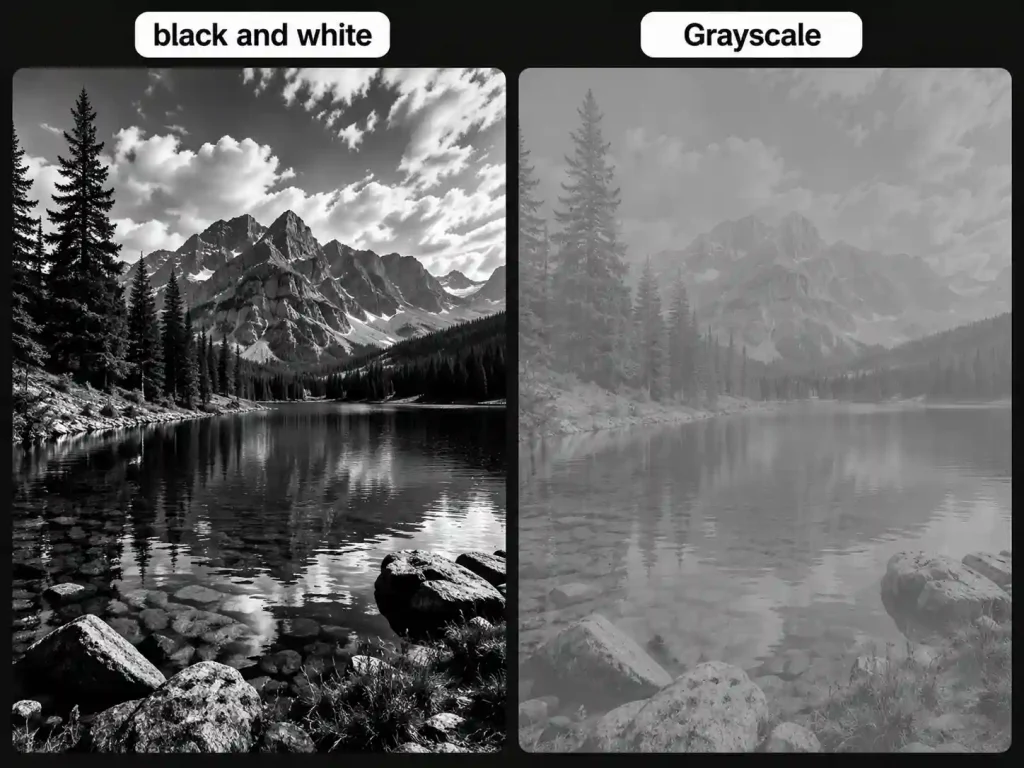
The terms black and white and grayscale are often used interchangeably, but technically they are not quite the same.
A grayscale image contains different shades between black and white. Each pixel represents a level of brightness rather than a full color value.
A strictly binary black-and-white image, on the other hand, contains only black and white with no intermediate gray tones.
In everyday photo editing, however, “black and white” usually refers to a monochrome image containing a range of gray tones. That is also why a good black and white filter does more than simply remove color.
The conversion can take the brightness of different color channels into account. For example, two objects that look very different in color may end up with similar brightness after conversion. Adjusting their tonal values can help keep them visually distinct.
This is one reason why a thoughtful black and white conversion can look much better than simply dragging the saturation slider all the way down.
How to Make an Image Black and White: Phone, Photoshop or Colorify?
| Method | Contrast Control | Quality | Privacy | Best For |
|---|---|---|---|---|
| Phone editor | Basic | Depends on app | Depends on app | Quick personal edits |
| Photoshop | Excellent | Excellent | Local editing | Professional editing |
| Colorify AI | Automatic | High-quality output | Local browser processing | Fast online conversion |
Using Your Phone
Using Photoshop
Using Colorify AI

If your goal is simply to make an image black and white online, Colorify AI offers the shortest workflow:
- Open the Colorify AI Black and White Filter in your browser.
- Upload your image (JPG, PNG, or WebP).
- The tool processes it locally and shows a preview — contrast and fine details are preserved, not just desaturated.
- Download the result, free and without a watermark.
It works directly in your browser with no software install or account, and because processing stays on your device, your image is not uploaded to a server. Try the Colorify AI Black and White Filter when you want the result without a long editing session.
Common Black and White Photo Fails You Want to Avoid
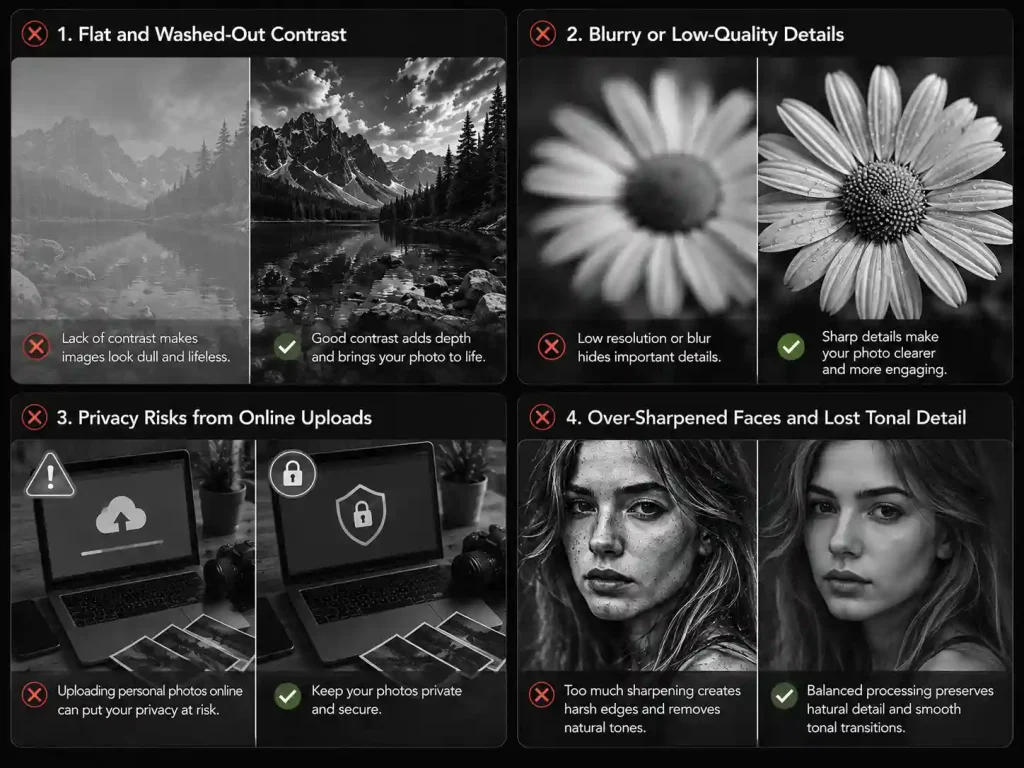
Flat and Washed-Out Contrast
Why does my black and white photo look like a washed-out T-shirt?
Simply removing color can leave an image stuck in the middle-gray range. Without enough separation between highlights, midtones, and shadows, the result can look flat rather than dramatic.
Blurry or Low-Quality Details
Why does the photo look foggy when I zoom in?
A black and white conversion should remove color, not detail. Poor compression, resizing, or low-quality processing can soften edges and make textures look blurry.
Privacy Risks from Online Uploads
Why did editing a photo come with a side order of spam emails?
Some online editors upload images to their servers for processing. For personal portraits, family photos, or other private images, that may be more exposure than necessary.
Over-Sharpened Faces and Lost Tonal Detail
Why does everyone suddenly look like a plastic action figure?
Aggressive sharpening can create unnatural edges and skin textures. At the same time, overly dark shadows and blown-out highlights can remove the subtle tones that make faces and other subjects look natural.
🎯A Simpler Way to Avoid These Problems
You can manually adjust saturation, contrast, shadows, highlights, and sharpness—but if the goal is simply to make an image black and white, that can be a lot of editing for a very small job.
Colorify AI’s Black and White Filter keeps the process simple. Upload your image, apply the filter, and download the result. The tool is designed to create a clean black and white effect while preserving contrast and image details, without requiring a complicated editing workflow.
It also processes images locally in your browser, so you don’t have to upload your photo to a remote server just to remove its color.
Upload. Convert. Done.
When Should You Use a Black and White Filter?
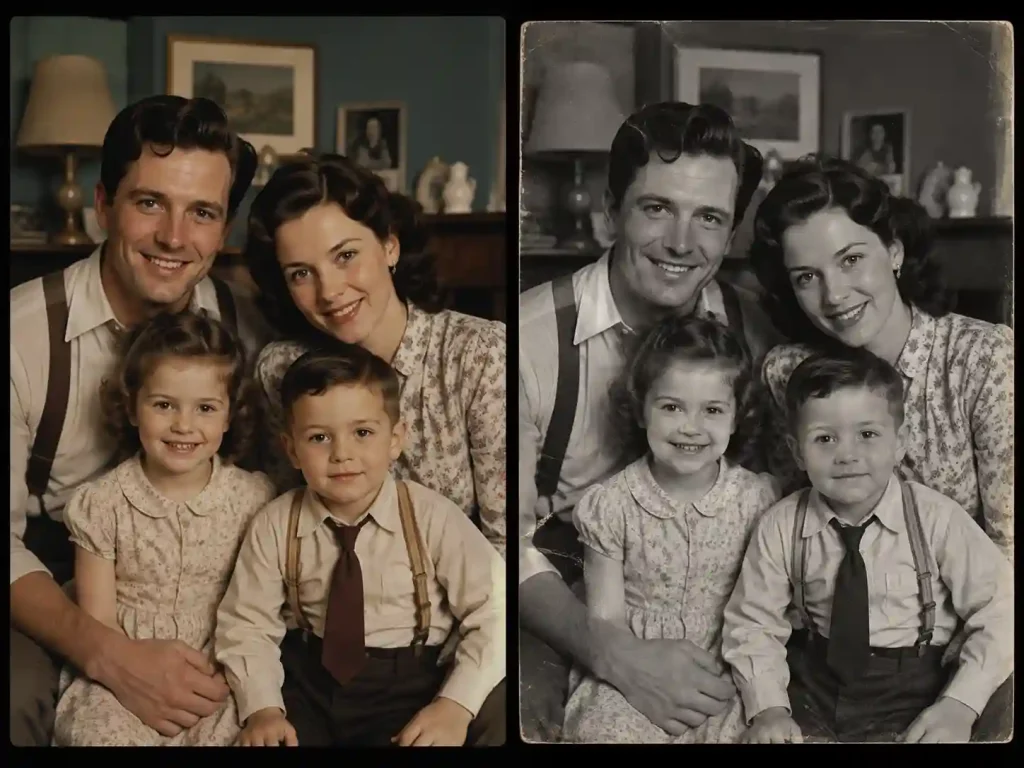
Old Photos
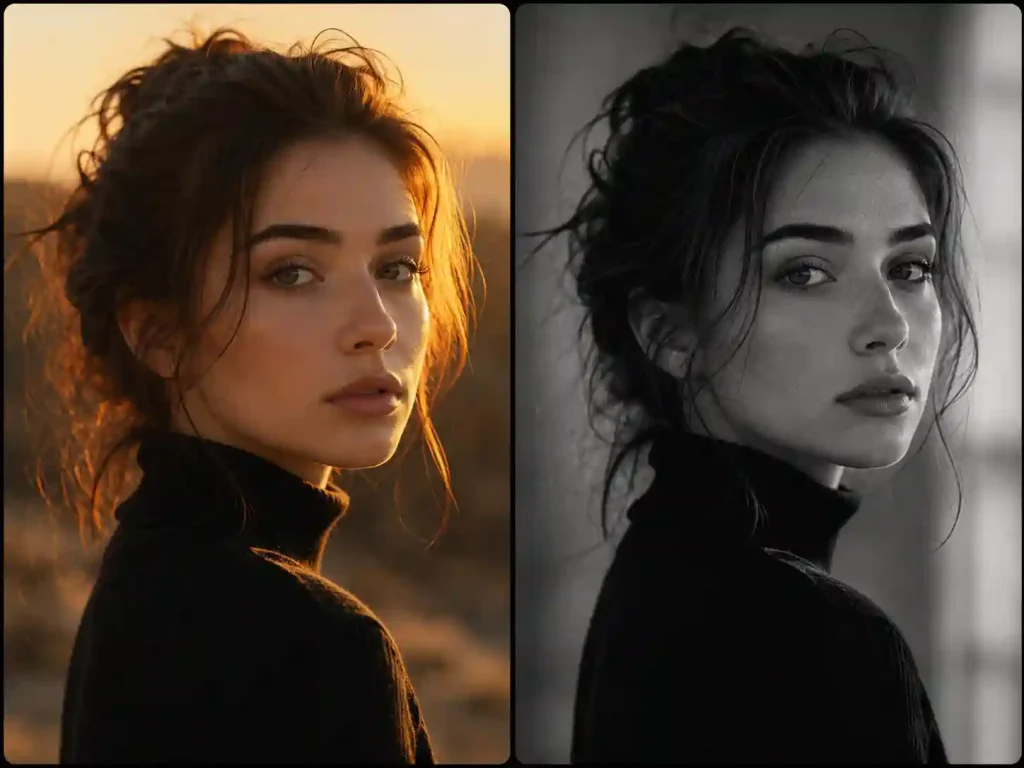
Portraits and Profile Pictures
Photography Portfolios

Social Media and Creative Projects

When Should You Not Use It?

Conclusion
Making an image black and white doesn’t have to mean opening a complicated photo editor and adjusting a dozen settings. The key is to preserve enough contrast, detail, and tonal depth while avoiding unnecessary compression or privacy concerns.
If you just want to make an image black and white quickly, Colorify AI offers a simpler approach. Upload your image, apply the Black and White Filter, and get a clean monochrome result without a complicated editing workflow.
Sometimes, the best photo-editing workflow is the one that lets you finish before you start wondering where the “Desaturate” button went.